
Production Home
1. Page Overview
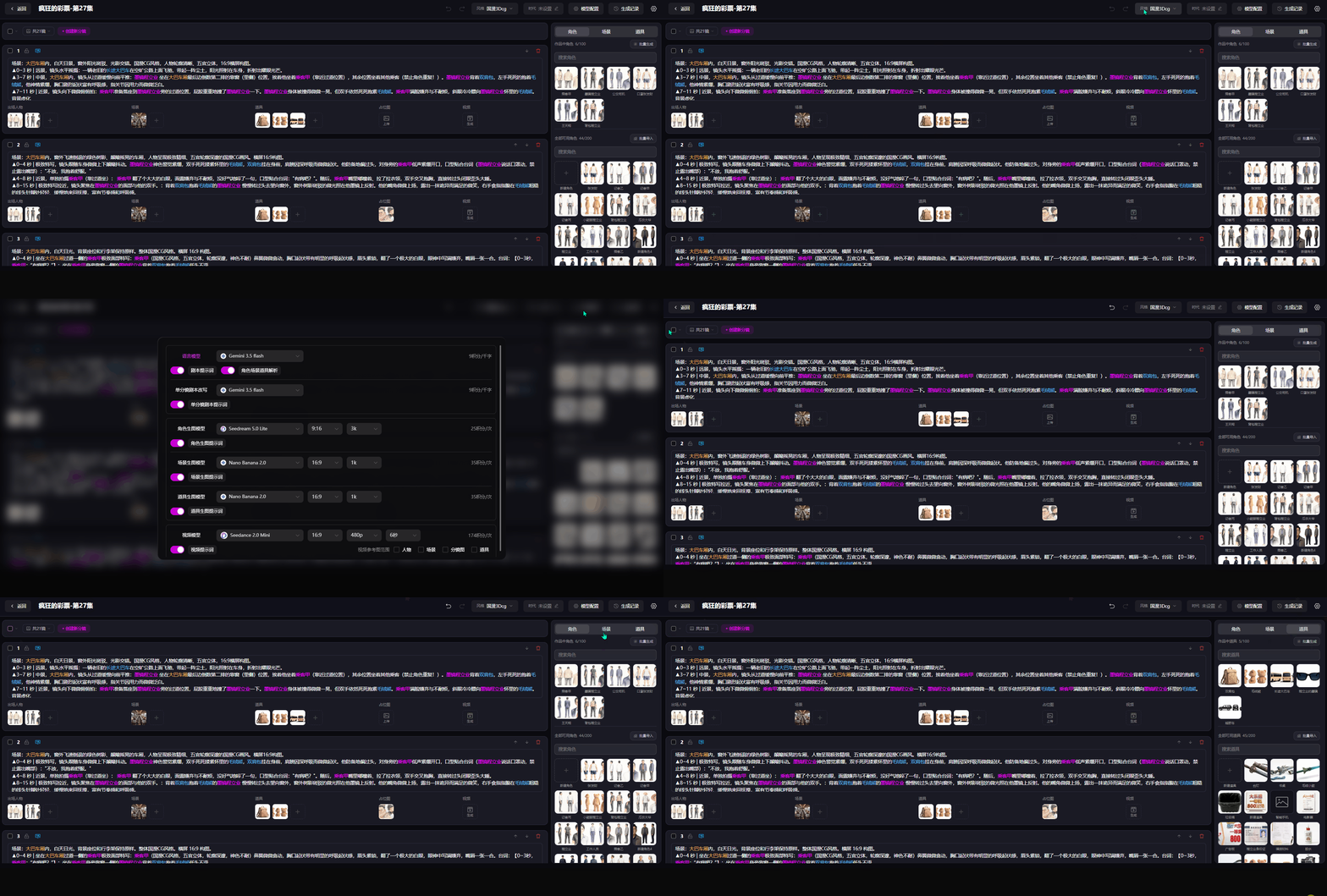
This page is the core workspace for fine-grained storyboard editing across the full AI short-drama pipeline. Write per-shot copy, define shot language, bind characters / scenes / props, upload placeholder images, and generate finished videos in one click. The top-right area controls global art style, era, model settings, and generation history.
2. Top Global Bar
- Back: Exit the current episode storyboard and return to the project list
- Episode title: Current episode name and number
- Undo / Redo: Revert or restore storyboard text, ordering, and asset binding
- Style: Global art style. Options include:
- Live-action realistic
- Colored-pencil realistic
- Disney 3D
- Urban Korean webtoon
- Japanese anime
- Makoto Shinkai
- Chinese horror
- Chinese 3D CG anime
- Custom
- Era: Story time period; leave unset for no era constraint
- Model configuration: Language model / single-shot script rewrite template / character image model / scene image model / prop image model / video model, and related settings
- Generation history: Stores AI generation tasks from the last 30 days by video and image, showing task ownership, model used, creation time, queue time, status, and failure reasons for traceability
3. Left Storyboard List
3.1 Batch Actions & New Shots
- Top-left checkbox: Batch-select multiple shots for batch delete / lock / generate video / text processing / character, scene, prop processing / export, and more
- Create new shot: Add a blank shot with the next sequence number
- Lock icon (left of each shot): Lock a shot to prevent accidental delete or reorder
- Up/down arrows (right): Drag to reorder playback; red trash icon deletes the shot
3.2 Per-Shot Copy
Complete via AI generation or manual input.
3.3 Per-Shot Asset Binding
Below each shot, bind characters, scenes, props, and placeholder images. Placeholder images support local upload only.
Video: After generation, preview the finished shot directly in the player.
4. Right Asset Library
Three tabs—Characters, Scenes, Props—for all project assets.
4.1 AI Batch Generation for Characters / Scenes / Props
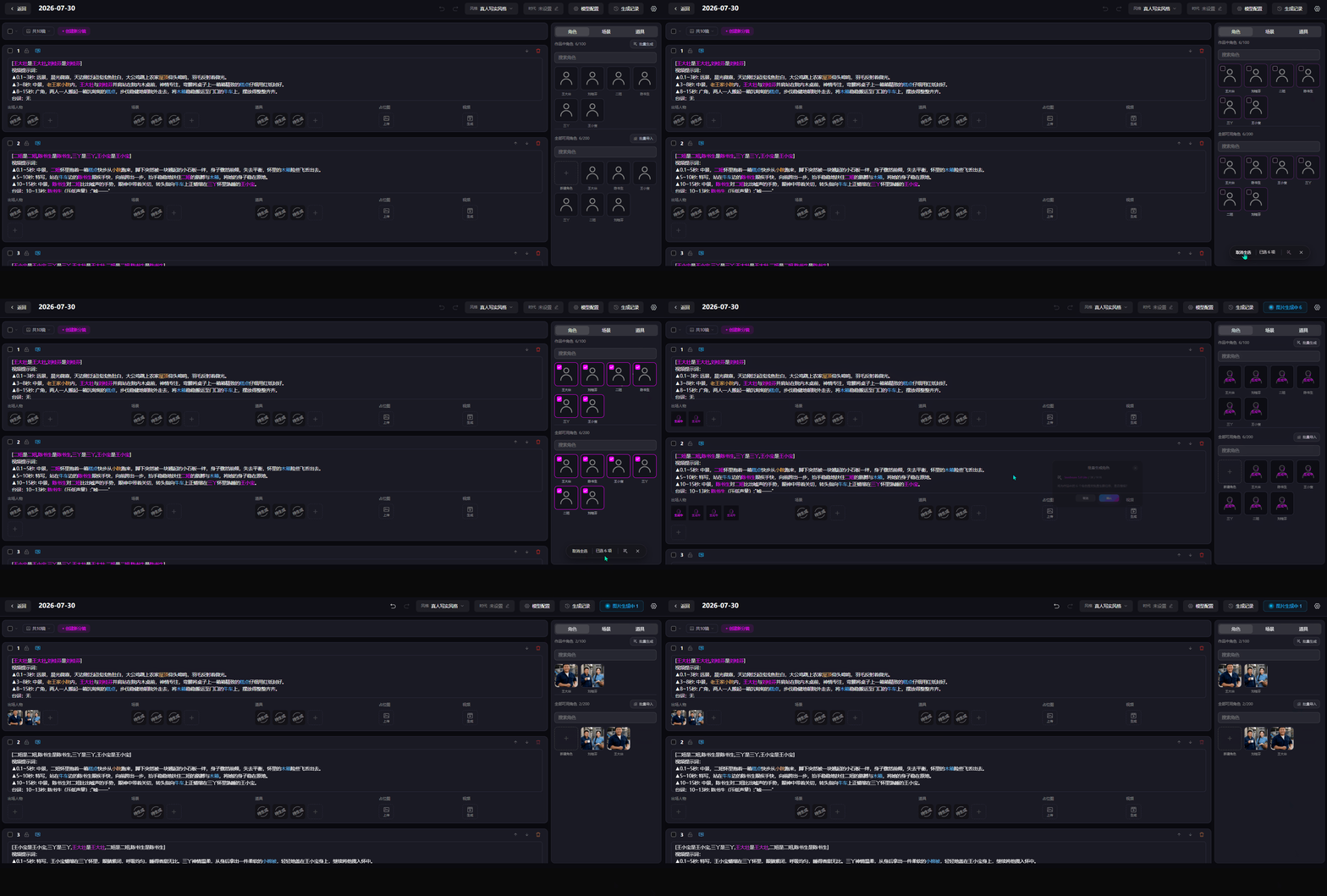
Upload a ZIP archive to batch-import character, scene, and prop images—ideal for premium short dramas with existing asset libraries.
4.2 Create Character / Scene / Prop
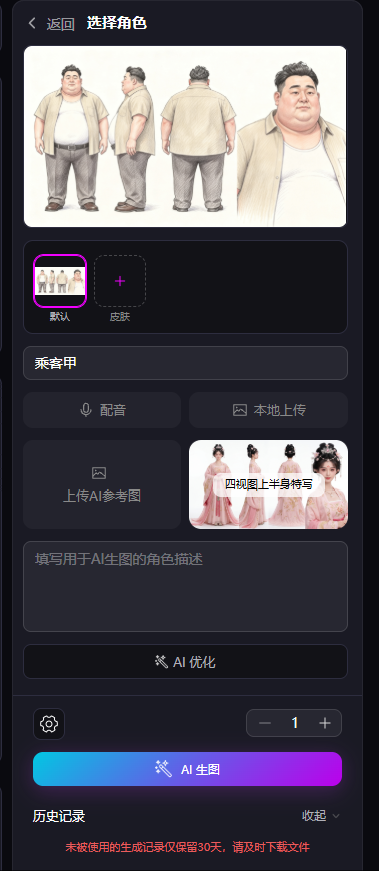
- Naming: If left blank, the system default name is saved
- Character views: Choose view types as needed
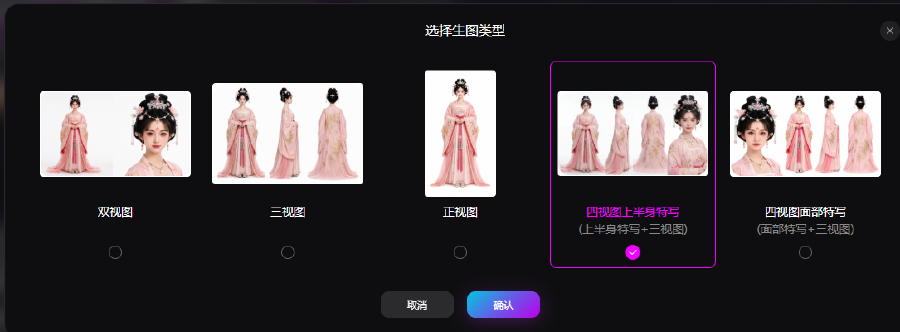
- Skins: Add multiple outfit/look variants
- Upload: Local upload / AI reference image upload
- AI optimize: Improve asset prompts
- Gear icon: Character image model parameter settings
- Number stepper: Image count per generation (default 1)
Character voice binding:
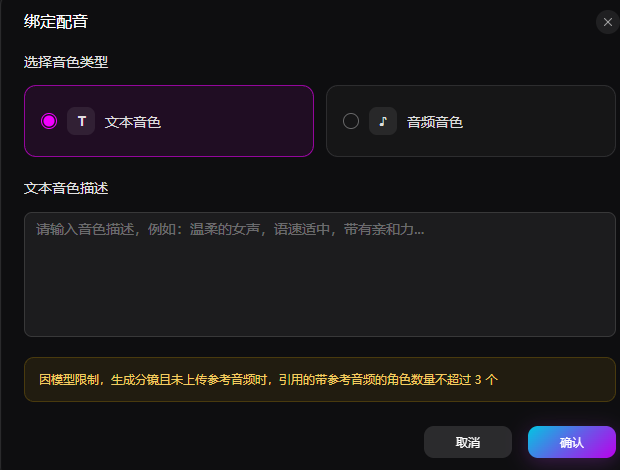
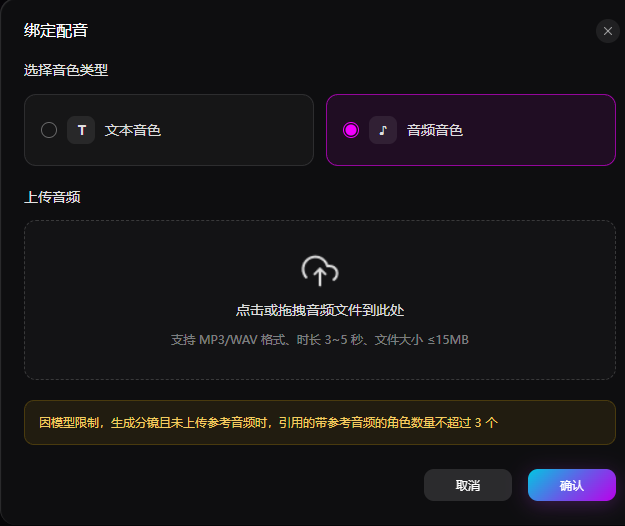
Two voice configuration options. Up to 3 characters with audio voices per shot:
- Text voice: Describe timbre, speed, and emotion in text; AI generates matching voice acting
- Audio voice: Upload a 3–5 second MP3/WAV reference clip (≤15MB)
History: View past generations for the character. Unused history is kept for 30 days—download promptly.
4.3 Batch Import Assets
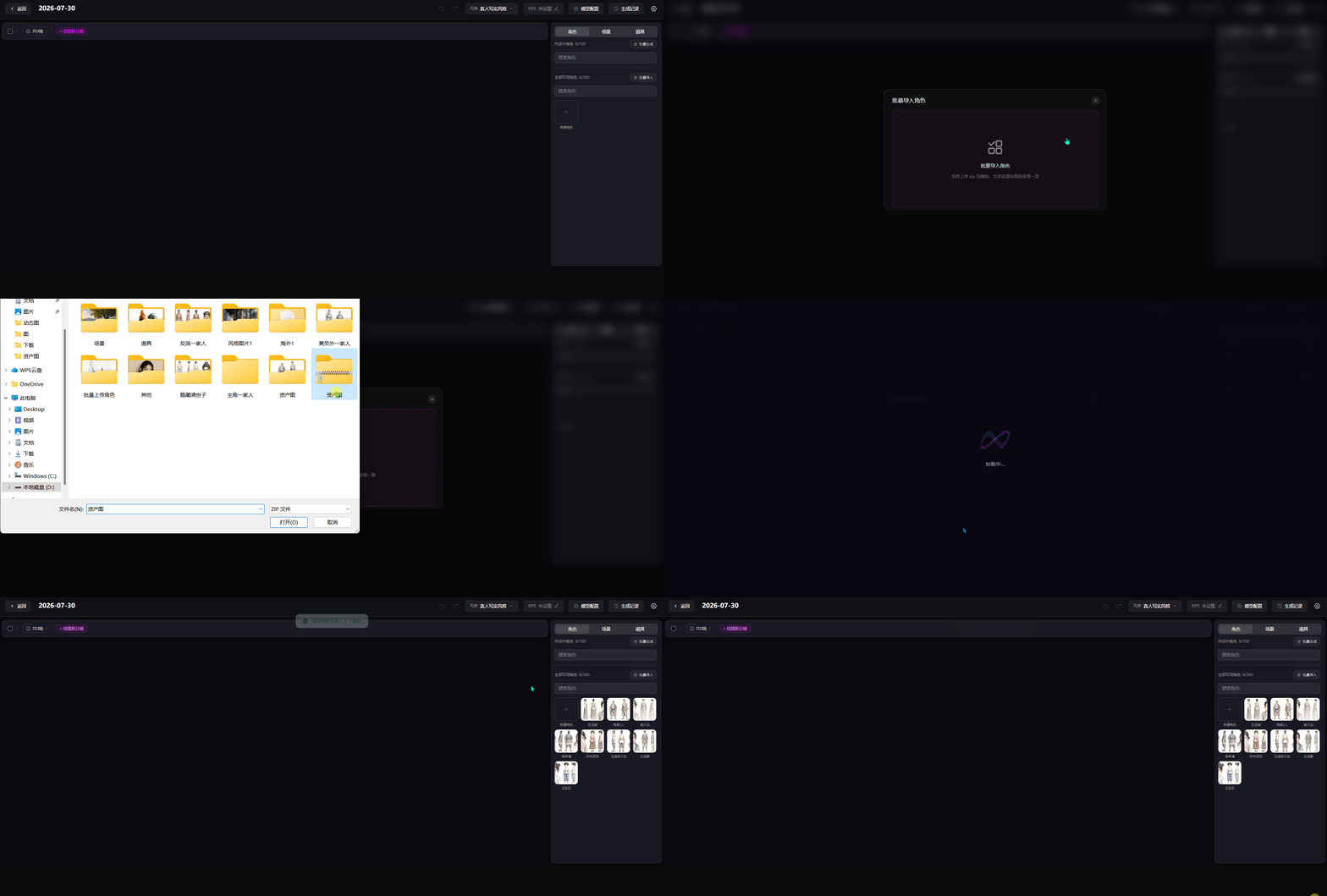
Upload a ZIP archive to batch-import character, scene, and prop images—ideal for premium short dramas with existing asset libraries.