
Asset Management
1. Page Overview
Asset management centrally handles characters, scenes, props, and general assets extracted from the script. It supports AI generation, batch upload, and voice binding to control the full visual and audio resource set. After assets are ready, submit to move on to storyboard and video generation.
2. Core Features
AI Batch Generation for Characters / Scenes / Props
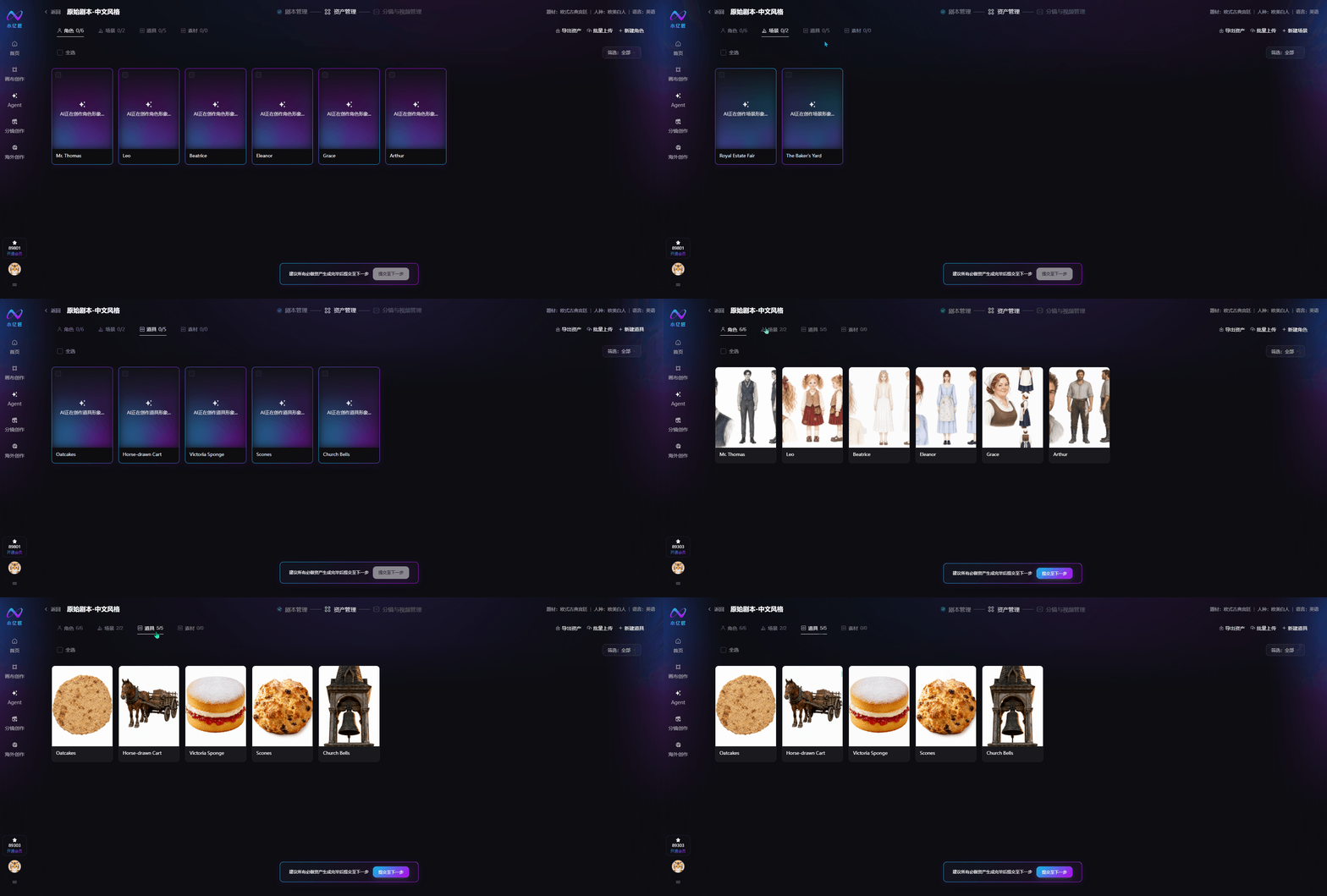
Select all or part of the assets for batch AI image generation. Characters default to full-body three-view sheets plus upper-body close-ups to keep character appearance consistent and avoid mismatches in the final video.
Create Character / Scene / Prop
Two ways to create assets: local upload or AI generation.
- AI generation supports reference images to lock character appearance
- Edit which episodes an asset appears in to control usage scope
- Customize generation parameters: art style, aspect ratio, image model, and resolution
- Bind dedicated voice acting for characters
3. Batch Upload Assets
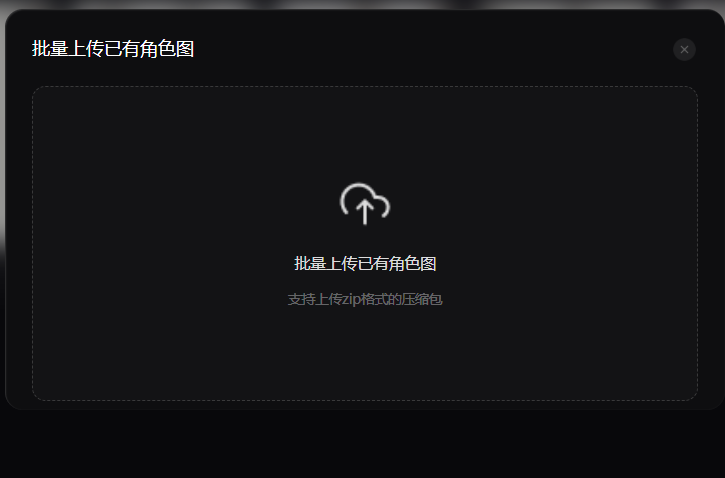
Upload a ZIP archive to batch-import character, scene, and prop images—ideal for premium short dramas with existing asset libraries.
4. Asset Replacement
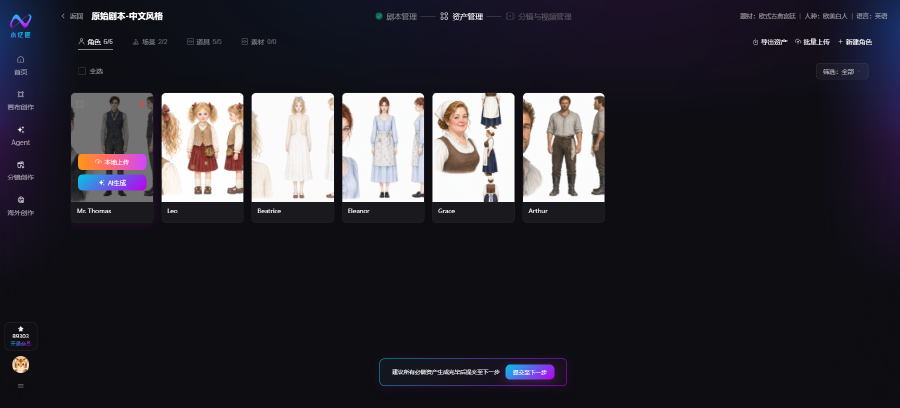
Replace any asset image at any time by re-uploading locally or regenerating with AI.
5. Character Voice Binding
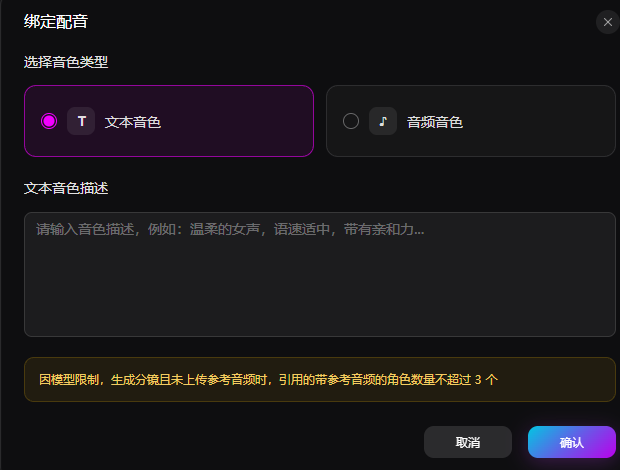
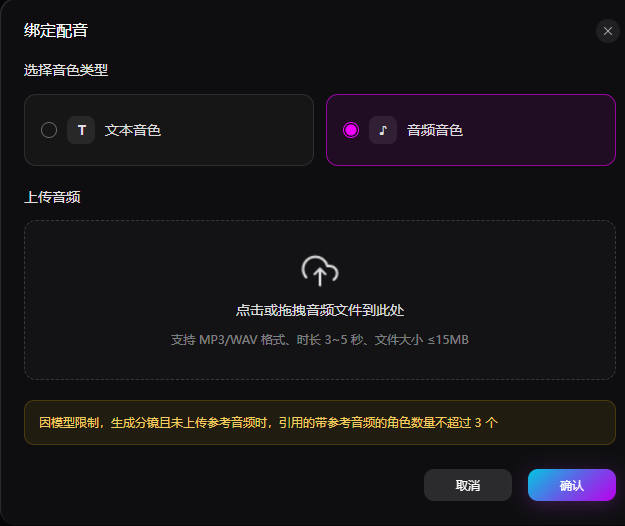
Two voice configuration options. Up to 3 characters with audio voices per shot:
- Text voice: Describe timbre, speed, and emotion in text; AI generates matching voice acting
- Audio voice: Upload a 3–5 second MP3/WAV reference clip (≤15MB)
6. General Asset Library
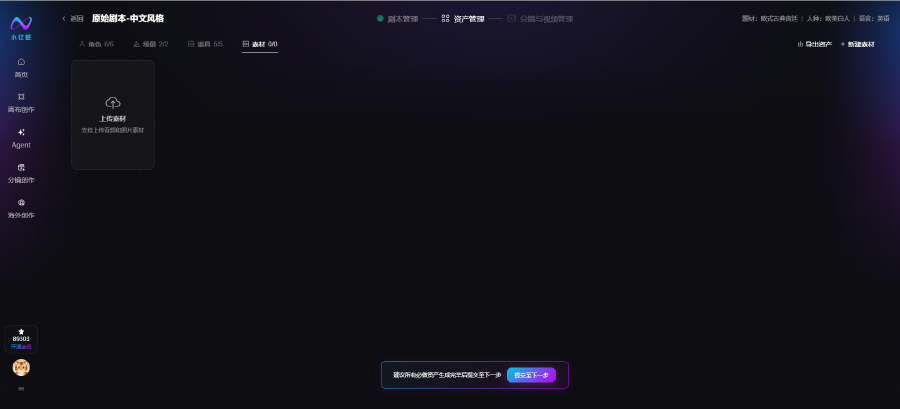
Upload image and audio assets for flexible use as storyboard placeholders, voice-over, and more.
7. Submit & Continue
After all character, scene, prop, and general assets are generated or uploaded, click submit. The system carries the complete asset set into storyboard and video management for batch rendering.