
Batch Operations Toolbar
1. Overview

This toolbar is the batch-processing entry on the storyboard production home. Use it to batch-select all shots in an episode, batch-generate scripts/videos, batch-lock for protection, batch-export, and more—reducing repetitive per-shot work for unified episode output and parameter fixes.
2. Core Features
2.1 Global Selection Dropdown
Quick-selection rules menu to filter shots that match criteria for batch operations.
2.2 Shot Count Display
Shows total shots in the episode at a glance; dropdown filters shots by status.
Create new shot: Add one blank shot (single-shot add; not part of batch selection).
2.3 Selection Controls
- Selected count: Live count of checked shots to confirm batch scope
- Select all: Check every shot in the episode
- Invert selection: Uncheck selected shots and check the rest—useful when excluding a few shots from batch work
- Clear selection: Uncheck all and exit batch mode; toolbar collapses
2.4 Lock Icon
What it does
- Batch lock: Lock selected shots so they cannot be accidentally deleted, edited, or overwritten by batch regeneration
- Batch unlock: Click again to restore editability
When to use
Lock finalized shots or shots with finished videos before running other batch actions.
2.5 Batch Generate Video
Core function
Select multiple shots and run video generation in one click. Track progress and results in Generation history.
Rules
- Governed by top-right model settings, prompt toggles, and global style
- On failure, check generation history for the reason, fix individual shots, and re-run batch generation
2.6 Text Processing
Single-Shot Script Rewrite
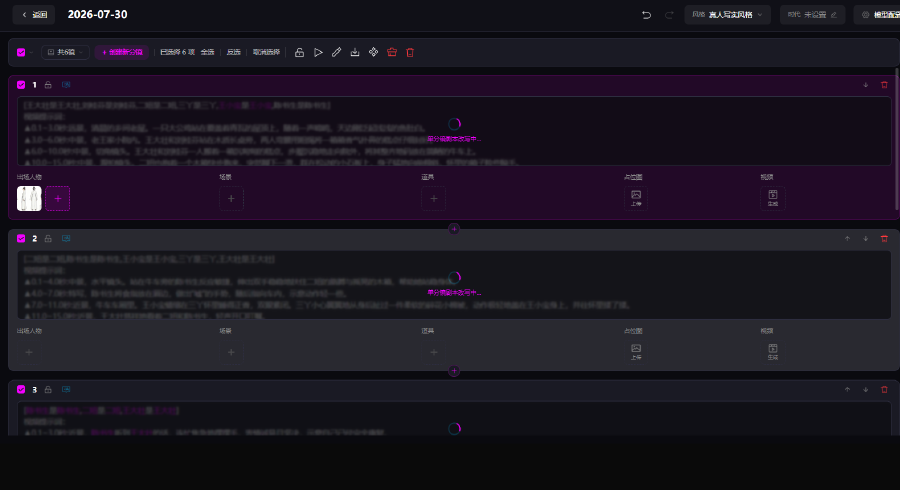
Using templates from Model configuration, batch-optimize selected shot scripts.
Free-Form Edit Instructions
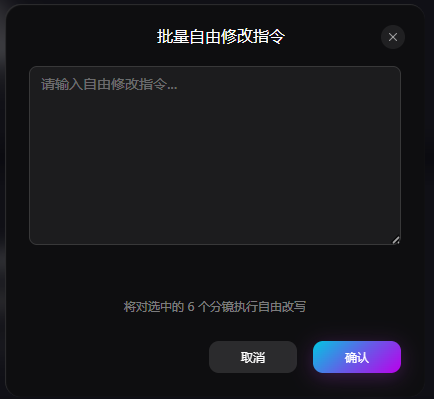
Select multiple shots, enter rewrite requirements (unify style, add camera movement, polish dialogue), and batch-edit shot copy with AI.
Keyword Replace
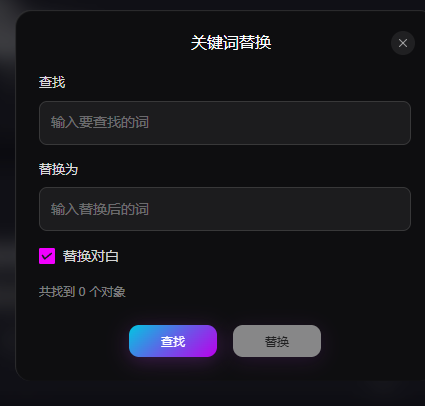
Enter old and new terms; optionally replace dialogue; preview match count; then batch-replace—useful for unifying character names, scene names, etc.
AI Split Script
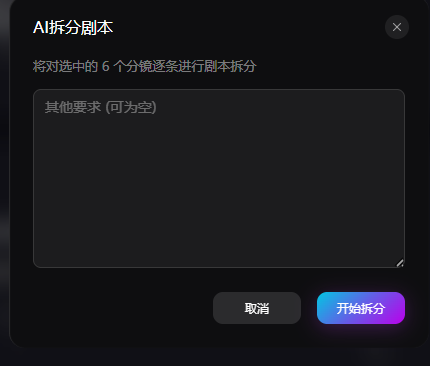
Split selected shots according to the number of splits you specify.
2.7 Batch Export
Supported export types:
- Alternate videos
- Placeholder images
- Character images
- Scene images
- Prop images
- Voice acting
- CapCut draft
2.8 Parse Characters / Scenes / Props
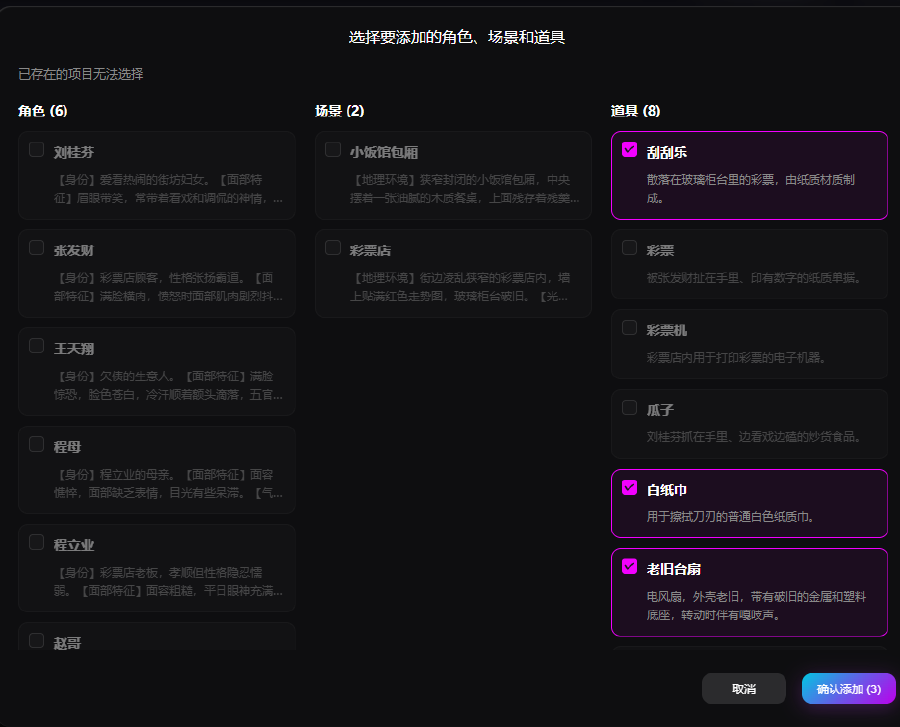
Automatically extract characters, scenes, and props from the script. Existing assets are grayed out; check new assets to add as needed.
2.9 Toolbox
Supported clear actions:
- Clear characters
- Clear scenes
- Clear props
- Clear placeholder images
- Clear videos and alternates
2.10 Batch Delete
Delete selected unused or duplicate test shots in bulk. Deletion is irreversible—export a backup first when unsure.