
Project Creation
1. Create a Project
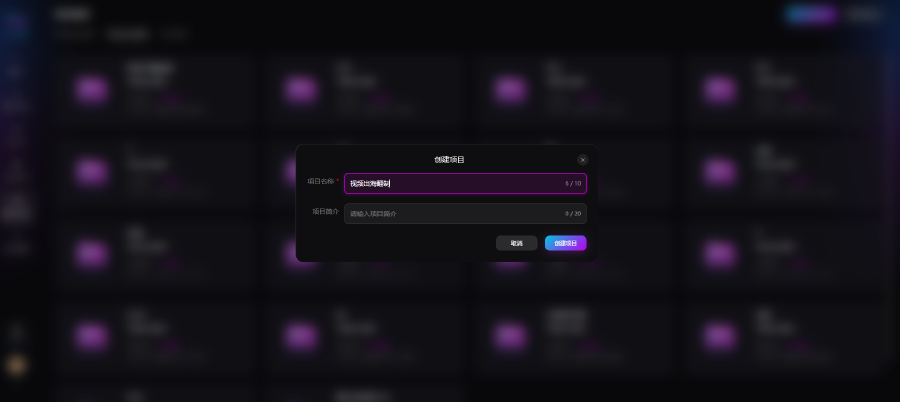
Enter a project name and description, then click Create to generate an independent project workspace.
Project rule: one project can contain multiple works; each work supports single-episode video upload.
2. Create a Work
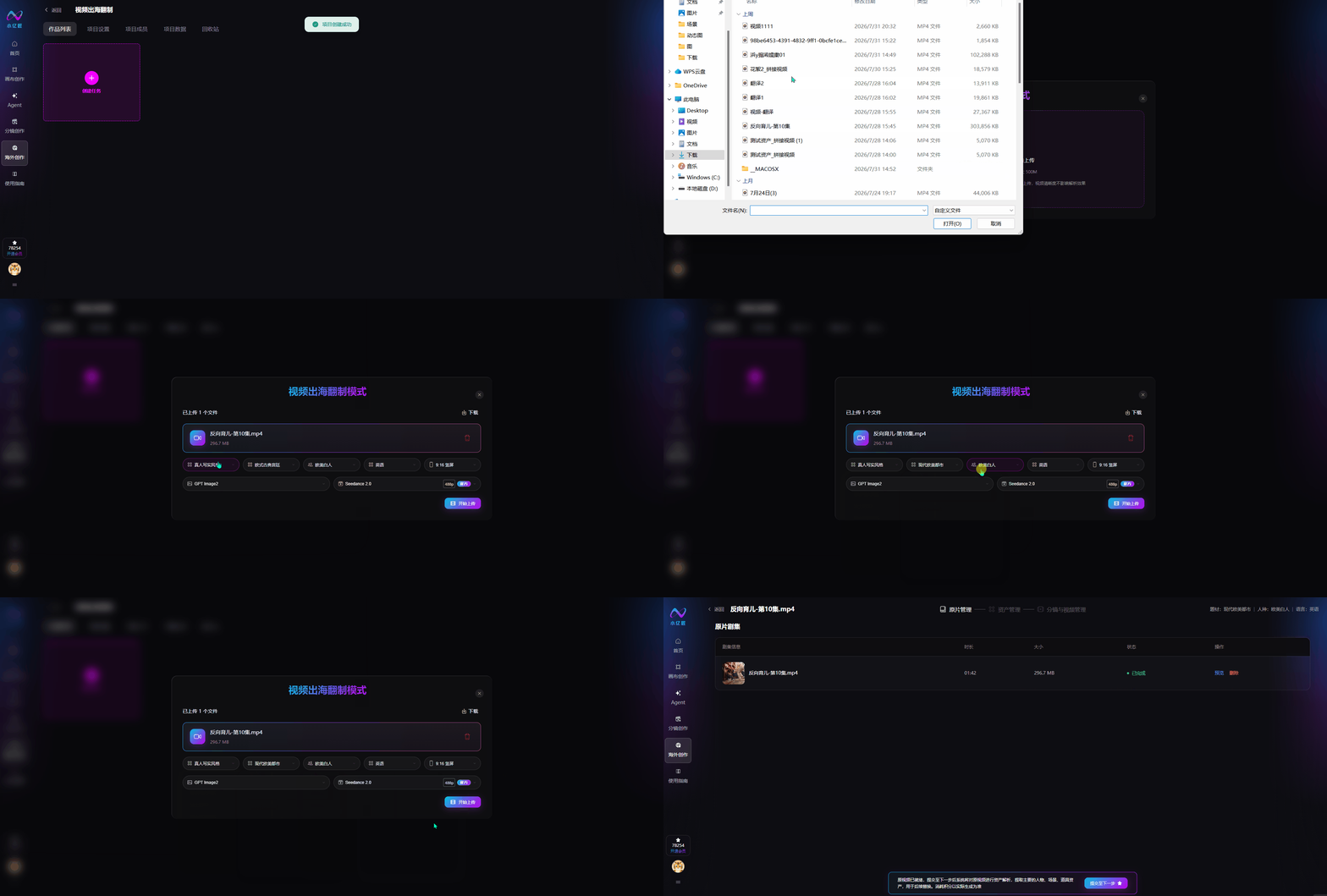
Only single video file upload is supported.
- MP4 and MOV formats
- Max 500MB per file; compressing to under 50MB is recommended for faster upload—video clarity does not affect AI parsing
3. Work Parameters
Art Style
The platform supports multiple styles. AI renders all shots, lighting, and character texture consistently in the selected style, defining the visual tone. Available styles:
- Live-action realistic
- Colored-pencil realistic
- Disney 3D
- Urban Korean webtoon
- Japanese anime
- Makoto Shinkai
- Chinese horror
- Chinese 3D CG anime
- Custom
Overseas Remake Theme
Built-in regional localization theme templates. AI rewrites scene, era, social context, architecture, costume, and etiquette to match the selected theme and audience. Options:
- European classical court
- Modern Western urban
- Southeast Asian ancient court
- Southeast Asian urban drama
- Ancient Indian royal mythology
- Hindi elite family drama
- Korean historical court intrigue
- Korean chaebol urban
- Japanese classical wabi-sabi
- Japanese cool urban
- Custom (enter a specific overseas theme)
Overseas Remake Ethnicity
One-click replacement of character ethnicity. AI matches facial features and appearance in generation to reduce overseas visual inconsistency. Options:
- Caucasian
- Vietnamese
- Thai
- Indian
- Korean
- Japanese
- Custom (enter a specific ethnicity)
Overseas Remake Language
Auto-translate all dialogue; can link to dubbing for target-language audio. Options:
- English
- Indonesian
- Thai
- Vietnamese
- Japanese
- Korean
- Portuguese
- Spanish
- French
- German
- Custom (enter a specific language)
5. Aspect Ratio
- 9:16 vertical: Mainstream short-video format for mobile feeds
- 16:9 horizontal: Standard cinematic widescreen for longer series, panoramic shots, and large-screen playback
6. Image Generation Model
Choose from multiple image models to control per-shot keyframe quality.
7. Video Generation Model & Resolution
Multiple video models and resolutions control motion and final quality.
4. Start Upload
After configuring all parameters and uploading the script, click the button to start the task and go to the source upload progress list.