
Project Creation
1. Create a Project
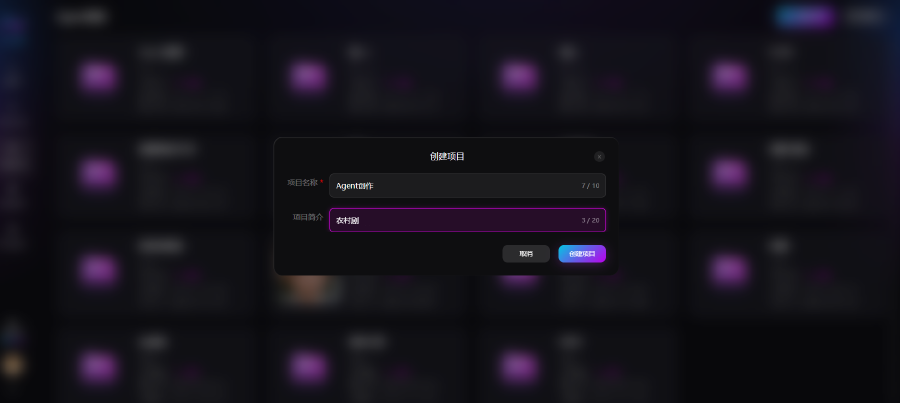
Enter a project name and description, then click Create Project to generate a project workspace.
Project logic: one project can contain multiple works; each work supports single-episode or multi-episode short-drama production.
2. Create a Work
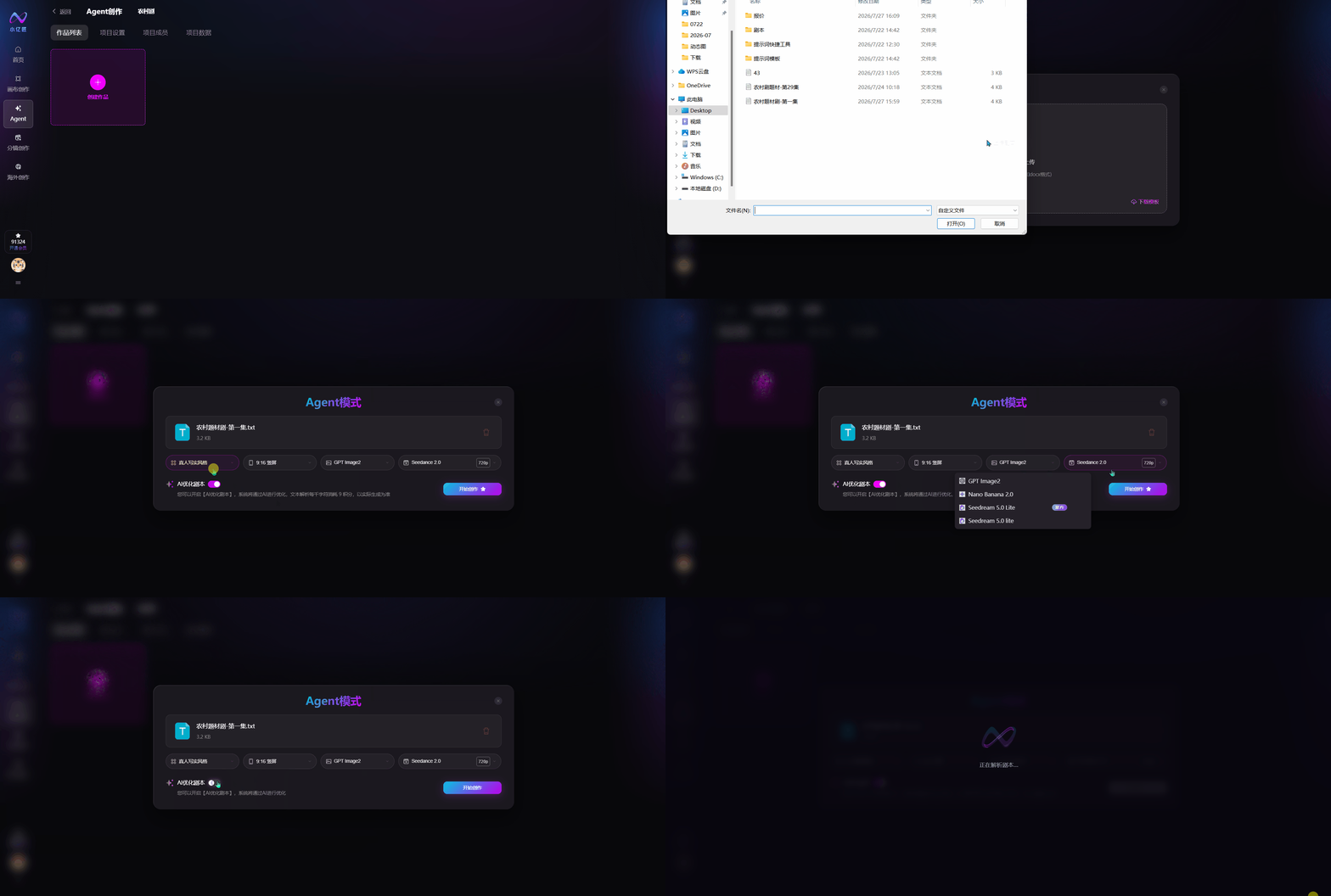
After entering a project, click Create Work. Only single-file upload is supported. For multi-episode scripts, combine them in one document and label episodes according to the format guidelines.
3. Script Upload Guidelines
To support Agent fully automated storyboard parsing and video generation, scripts should include six core elements so AI can accurately understand the story:
- Episode structure: Label episodes as "Episode 1", "Episode 2", etc., and split each episode into shot units (1-1, 1-2, etc.) for independent story beats
- Clear scene setup: Specify time, location, and atmosphere as the basis for scene and lighting generation
- Defined characters: Mark which characters appear in each shot to avoid missing or mismatched characters
- Detailed shot descriptions: Include shot sizes (wide / medium / close-up / extreme close-up), character actions, expressions, and camera movement
- Complete dialogue: Add character lines and inner monologue matched to each scene to support dubbing and lip-sync generation
4. Basic Configuration
4.1 Art Style
Once selected, this style applies to the full video—frames, lighting, and character texture. Available styles:
- Live-action realistic
- Colored-pencil realistic
- Disney 3D
- Urban Korean webtoon
- Japanese anime
- Makoto Shinkai
- Chinese horror
- Chinese 3D CG anime
- Custom
4.2 Aspect Ratio
- 9:16 vertical: Mainstream short-video format for mobile feeds
- 16:9 horizontal: Cinematic widescreen for longer series, large-screen playback, and panoramic content
4.3 Image Generation Model
Choose from multiple image models to control the look of each shot's keyframe.
4.4 Video Generation Model & Resolution
Choose from multiple video models and resolutions to control motion quality and final output.
5. AI Script Optimization
When enabled, the system automatically standardizes and restructures the script, filling in shot and scene details to reduce AI misinterpretation. Turn it off if your script is already well formatted to save credits.
6. Start Creation
After uploading the script and configuring all parameters, click the button to dispatch the task to the Agent intelligent task flow and start fully automated production.